Excel + AI for Beginners: 7 Things You Can Do Today with Copilot, Claude and Free Tools
How to use AI in Excel in 2026 – Copilot, Agent Mode, the COPILOT function, Claude for Excel and free options – with 7 ready-to-copy prompts and one golden rule.
 Abheek··7 min read·
Key takeaways
- There are three easy ways to use AI with Excel: Copilot inside Excel, the Claude for Excel add-in, or a free AI chatbot that writes formulas for you.
- AI is great at the boring parts: cleaning messy data, writing and fixing formulas, summarising text columns, and building charts.
- Golden rule: let AI write the formula, but let Excel do the maths. Even Microsoft says not to use its COPILOT function for calculations that need to be accurate.
Excel is used in almost every office job, and it just got a lot easier. In 2026 you can talk to your spreadsheet: ask it to clean messy data, write a formula, explain an error or build a chart, and watch it happen.
Here’s a plain-English guide to the AI options, seven things to try today (with prompts you can copy), and the one rule that keeps you out of trouble.
Three ways to use AI with Excel
1. Copilot inside Excel (Microsoft)
Copilot is Microsoft’s own AI, built into Excel for Windows, Mac and the web. You open the Copilot panel and type what you want.
- Agent Mode lets Copilot build and edit the workbook for you in several steps: new sheets, formulas, charts. It’s available with Microsoft 365 Personal, Family and Premium subscriptions and business Copilot licences.
- Clean data skill (new, rolling out this month): it spots duplicates, inconsistent formatting and wrong data types, then suggests fixes for you to approve.
- The
=COPILOT()function: AI inside a cell, for example=COPILOT("Classify this feedback as positive, negative or neutral", B2). Useful for text columns, but it needs a Copilot subscription.
Who can use it: you need a paid plan. That’s Microsoft 365 Personal or Family (with AI credits), Premium, or an eligible work account.
2. Claude for Excel (Anthropic)
Claude for Excel is an add-in: a chat panel on the right of your workbook. You can ask questions about the open workbook, change assumptions without breaking formulas, debug errors and build models, all without leaving Excel. It’s especially good at tracing why a number is what it is across several tabs.
Who can use it: anyone on a paid Claude plan (Pro and up), installed from the Microsoft Marketplace. Search “Claude by Anthropic” under Insert → Add-ins, and check the publisher is Anthropic.
3. The free route: any AI chatbot
No subscription? You can still get most of the benefit. Describe your columns to a free AI chatbot (ChatGPT, Claude, Gemini or Microsoft Copilot), ask for the formula, and paste it into Excel yourself.
“My sheet has Name in column A, Marks in column B and City in column C. Write an Excel formula for D2 that shows ‘Pass’ if marks are 40 or more, otherwise ‘Fail’.”
Using Google Sheets? Gemini works there too. You can type =AI("...", A2) in a cell. But it needs an eligible Google Workspace or Google AI plan, so free accounts can’t use it.
7 things to try today (copy these prompts)
These work in Copilot, Claude for Excel, or any chatbot (paste a few sample rows, not real private data).
1. Clean messy data
“Clean this table: trim extra spaces, make names Proper Case, fix dates to DD-MM-YYYY, and flag duplicate rows.”
2. Write a formula from plain English
“Add a column that shows the total sales per city using SUMIFS.”
3. Fix an error
“Why is cell F12 showing #VALUE!? Explain in simple words and fix it.”
4. Explain someone else’s formula
“Explain what this formula does, step by step: =IFERROR(INDEX(C:C, MATCH(H2, A:A, 0)), “Not found”)”
5. Summarise a text column
“Read the feedback in column D and tag each one as Price, Quality, Delivery or Other.”
This is exactly where =COPILOT() and Google’s =AI() shine.
6. Make a chart and a summary
“Create a chart of monthly sales and write three bullet points on the biggest trends.”
7. Build a starter template
“Build a monthly budget tracker with income, expenses by category, a running balance and a pie chart.”
The golden rule: AI writes the formula, Excel does the maths
AI tools can be confidently wrong. Even Microsoft says not to use its COPILOT function for numerical calculations or any task that needs accuracy or reproducibility. Use normal formulas like SUM, AVERAGE and IF for those. It also says to avoid AI output for financial reporting, legal or compliance work.
So:
- ✅ Ask AI to write
=SUMIFS(...), then let Excel calculate it. - ✅ Spot-check a few rows by hand.
- ❌ Don’t ask AI “what’s the total?” and copy its number into a report.
Keep your data safe
- Don’t paste Aadhaar or PAN numbers, salaries, customer phone numbers or anything confidential into a free chatbot.
- At work, use the tool your company has approved. Business Copilot and Claude plans come with data protections that free tools may not.
- Use made-up sample rows when you’re asking a chatbot for a formula. It only needs the column structure.
Which one should you pick?
| If you… | Use |
|---|---|
| Already pay for Microsoft 365 | Copilot in Excel: it’s built in |
| Work with big multi-tab models, or already use Claude | Claude for Excel |
| Live in Google Sheets with a Google AI plan | Gemini in Sheets |
| Don’t want to pay anything | A free chatbot to write formulas, then paste them in |
Why this matters for your career
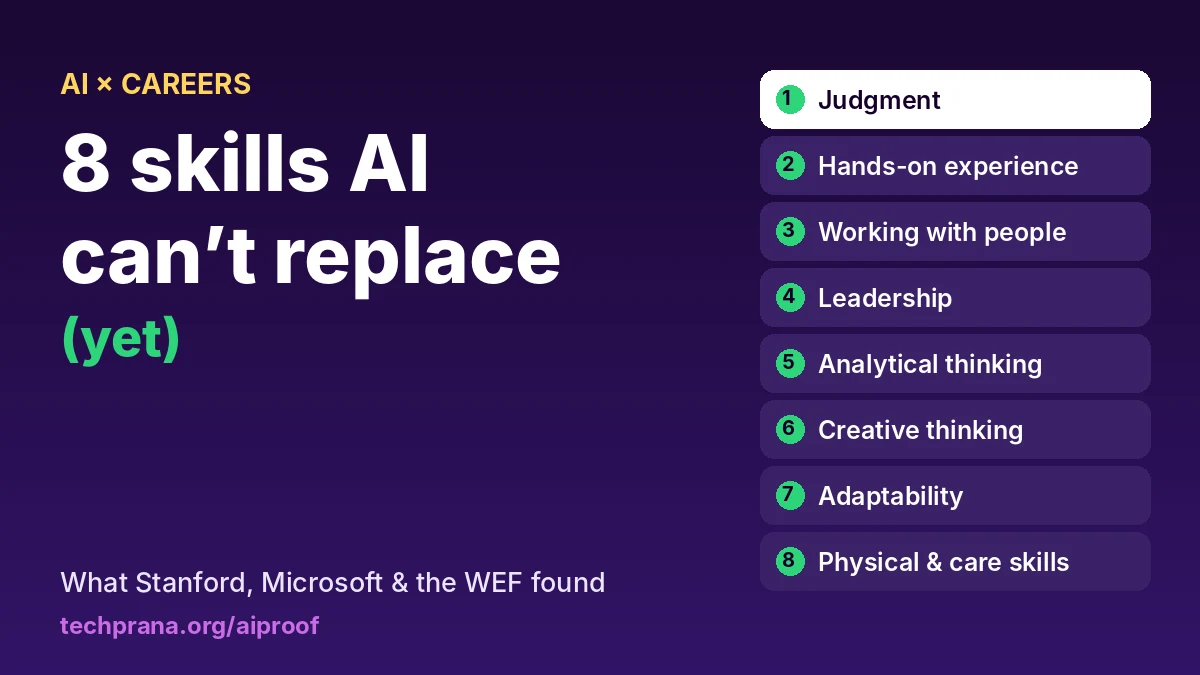
AI doesn’t make Excel skills useless. It makes people who understand Excel much faster. You still need to know what a good formula looks like, spot when a number is wrong, and explain the result to your manager. Those are the skills AI can’t do for you (more on that in 8 skills AI can’t replace).
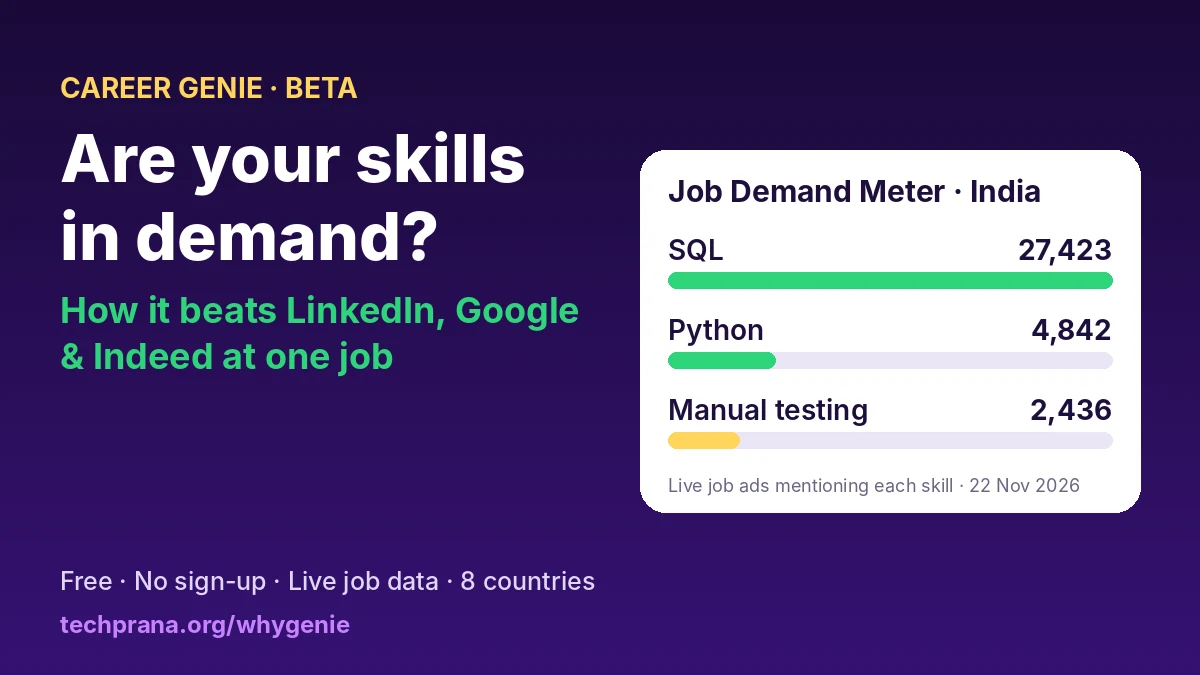
Want to see how many employers are asking for Excel, SQL or Power BI right now? Check your skills in Career Genie. It’s free, with no sign-up.
Get weekly AI tips and skill-demand updates on TechPrana’s WhatsApp channel.
Sources
- Microsoft Support: Frequently asked questions about Copilot in Excel (licences)
- Microsoft Excel Blog: Agent Mode in Excel is now generally available on desktop (Jan 2026)
- Microsoft Copilot Blog: What's new in Microsoft Copilot – October 2026 (clean data skill, accounting skills)
- Microsoft Support: COPILOT function
- PC Gamer: Microsoft warns not to use the COPILOT function for tasks requiring accuracy
- Claude Docs: Claude for Excel
- TechRepublic: Claude for Excel can fix your formulas – but who checks Claude? (Nov 2026)
- Google Docs Editors Help: Use the AI function in Google Sheets