
Introduction:
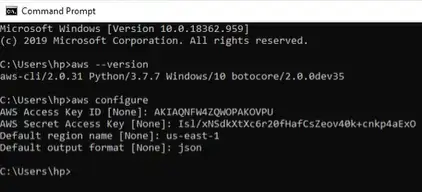
Terraform can be used in conjunction with AWS to automate multiple activities in an infrastructure by deploying code. Let us take a deep dive and see how we can leverage Terraform with aws. First of all we would need a code editor, in my case I am going to use Microsoft’s VS code. The obvious prerequisite is having an AWS account, go ahead and do that for testing and a hands on experience. We also need to install the AWS CLI on our local machine, you can download it from the AWS website, go ahead and see the version that works for your OS and dowload it. If you are not sure if the AWS CLI is installed properly on your local machine, go to windows command prompt and use the commands >aws –version.
Install AWS CLI
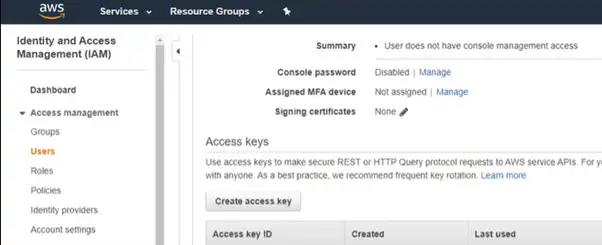
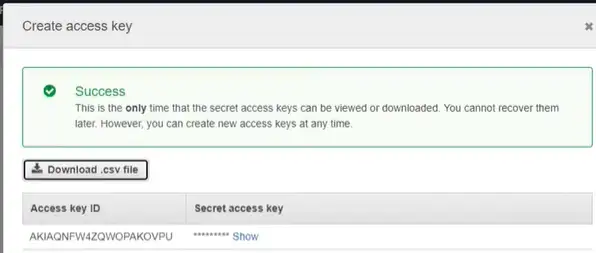
Okay, so you’ve created an AWS account and downloaded a code editor. Also downloaded the AWS CLI on your local machine, what’s next? We will need to configure the AWS CLI on your our local machine. To do that first you need to create user from your IAM console under the AWS dashboard. This is required as you would need a secret access key to create an authentication from your local machine to the AWS environment. Bear in mind this access key can be downloaded in a .csv format and be sure to do that. Now that we have the access key id we can continue with configuring AWS CLI. To do that open a command prompt from your local machine and type in >aws configure. You will be prompted to enter the access key id and the secret access key, do that and proceed.
Install Terraform on your windows local machine
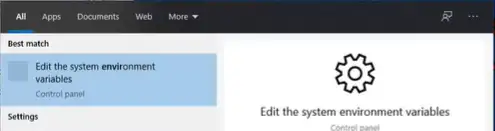
For starters goto terraform.io/downloads and download the exe file. After you complete installation you need to add the installation path of terraform to the system variables so as to make terraform to work. To do that in the windows search type in edit “environment variables” and navigate to Path and click on edit followed by new. After that add the path where terraform installed, for example C:\terraform. Click ok and now we shall go to windows power shell to see if the terraform command works, well it should work for sure and voila you’ve now installed terraform on you local machine.
Install terraform extension for VS code
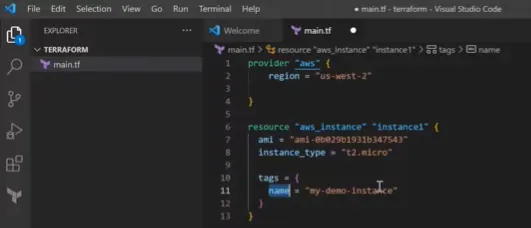
After you install the terraform extension on to vs code create your first terraform script. Lets create a new terraform file called as main.tf that will create a new EC2 instance. While we are creating our first terraform file for simplicity purposes we will need to input some information so as to have the script create an EC2 instance. Input the provider, region, resource, ami and instance type. For illustration see the picture below:
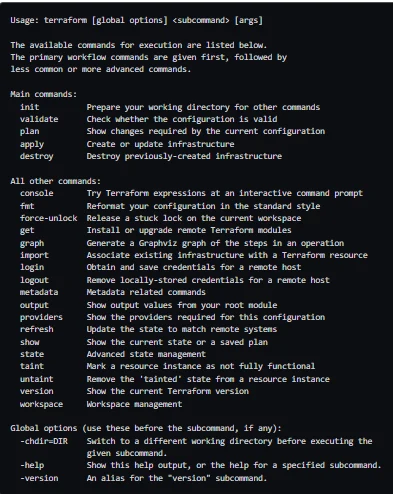
Be sure to fire the >terraform init command after you save the main.tf file, it will install the required plugins. Lastly you can use the >terraform fmt command that will format the main.tf file with the right syntax in case there is a need. See below some useful terraform commands
Getting the EC2 instance created
>terraform apply and that’s all required to create your very first AWS EC2 instance using terraform. So this step if done without terraform would take some time however with terraform you end up saving quite a lot of time. The best part about terraform is that it can be utilized and re-used on multiple cloud platforms with a few minor tweaks.
Things to consider
Using Terraform for infrastructure management has its drawbacks. You might face a steep learning curve, especially if you’re new to infrastructure as code. The state file, which tracks your resources, can become a single point of failure if not managed properly. Additionally, handling complex dependencies and advanced configurations can be challenging. You may also encounter occasional bugs or limitations in provider support. Despite its benefits, using Terraform requires careful planning and ongoing maintenance to avoid potential pitfalls. Terraform is free to use under the open-source model. HashiCorp, the company behind Terraform, offers a free version of the software that provides a wide range of functionality for managing infrastructure as code. However, HashiCorp also offers Terraform Cloud and Terraform Enterprise, which are paid services that provide additional features such as collaboration tools, policy enforcement, and enhanced security for organizations needing more advanced capabilities and support.
Conclusion
In conclusion, embracing Terraform for AWS is like giving your cloud a magic wand – abracadabra, and poof! Your infrastructure is ready. No more wrestling with endless configurations or feeling like you’re herding cats. With Terraform, you’ll glide through infrastructure management smoother than a buttered dolphin on a slip ‘n slide. So, strap on your wizard hat, wave that Terraform wand, and watch your AWS environment transform faster than you can say “elastic beanstalk.” Your future self will thank you, probably with a high five, a virtual cocktail, and maybe even a celebratory dance. Cheers to seamless infrastructure and stress-free cloud management!